Edit objects
In a matrix model, you can represent connections between objects and create new objects or connections. You can hide objects.
Open a matrix model.
If you want to hide symbols for the row header, click the row header. If you want to hide symbols for the column header, click the column header.
Click
 Display symbols and connections >
  Display symbols. The corresponding dialog opens.
Disable the symbol types you want to hide temporarily.
Click Apply.
The symbol type is no longer displayed in the matrix model. These settings are saved when you close the matrix model. When it is opened again, these settings are active. The symbol type is also removed from the list if there are no occurrences in the matrix.
Show object again
Click Display symbols and connections > Display symbols. Enable the check box of the relevant symbol type.
No longer display object in matrix model
If the object is no longer needed, you can delete it from the matrix model.
New objects are always inserted in the selected row or column in the matrix model. You can change the arrangement of objects in the matrix model subsequently.
Open a matrix model.
Select the objects you want to sort.
Click
 Sort.
Sort.Click
 Sort ascending (A-Z),
  Sort descending (Z-A), or Sort by type.
The matrix model is sorted based on your settings.
Tip
Select adjacent objects by holding down the Shift key and clicking the first and last object. You can select objects that are not adjacent by holding down the Ctrl key and clicking the relevant objects. You can extend or reduce your selection using the arrow keys.
You can move objects within a matrix model.
Open a matrix model.
Select the object in the matrix model.
Hold down the mouse button and drag the selected object to the relevant position.
The object is now displayed in the matrix model in the way you arranged it. A hierarchically grouped object is moved in its entirety.
Tip
You can move hierarchies by moving the top level.
Select adjacent objects by holding down the Shift key and clicking the first and last object. You can select objects that are not adjacent by holding down the Ctrl key and clicking the relevant objects.
You can hierarchically group any objects both in rows and in columns.
Open a matrix model.
Select the object that you want to position below another object in a hierarchy. The objects must be arranged directly below or beside each other.
Click
 Down one level.
For a row, the object is grouped hierarchically below the object that is placed directly above it. For a column, the object is grouped below the object that is placed directly to the left of it. The row or column can be reduced to the top level of the hierarchy by clicking it, that is, the subordinate rows or columns are hidden.
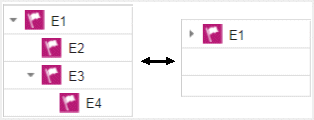
Tip
Select adjacent objects by holding down the Shift key and clicking the first and last object.
You can extend or reduce your selection using the arrow keys.
You can hierarchically group any objects both in rows and in columns. All actions performed on the top object are also performed on the subordinate objects.
Open a matrix model.
Click the arrow sign for an object to display the objects grouped below it if applicable.
Click the object for which you want to undo the hierarchical structure.
Click
 Up one level.
The object is placed one level higher in the hierarchy.
Tip
Select adjacent objects by holding down the Shift key and clicking the first and last object. You can select objects that are not adjacent by holding down the Ctrl key and clicking the relevant objects. You can extend or reduce your selection using the arrow keys.
You can remove symbols from the list of symbols to be used in a matrix model.
Create a matrix model.
If you want to remove symbols from the row header, click the row header. If you want to remove symbols from the column header, click the column header.
Click
Display symbols and connections > Display symbols. The corresponding dialog opens.Deselect the symbols you want to remove from the list of symbols to be used in a matrix.
Click Apply.
You have removed symbols from the list of symbols to be used in a matrix model. You can only remove a symbol type from the list if there are no objects of that symbol type used in the matrix.
You can change the symbol for selected objects if various symbols are available for them.
Prerequisite
The method filter in use includes different symbols of the objects you selected.
In an open model, click an object or hold the Ctrl key pressed to select multiple objects of the same type.
Click the Start tab bar if not already selected.
Click
 Change symbol. The list of object symbols available for the selected object(s) is shown.
Click the symbol you want to use from now on for the selected object/s in this model.
The symbol for the selected object is or the symbols of the selected objects are changed.
You can copy objects in a matrix model and paste them into the same or another matrix model.
Copy and paste objects
Open a matrix model.
Select one or more objects in the matrix model.
Click
 Copy or use the keyboard shortcut Ctrl + C.
Click the relevant position in the matrix model.
Click
 Paste or use the keyboard shortcut Ctrl + V.
The objects are pasted into the matrix model as occurrence copies.
Copy and paste hierarchically grouped objects
Open a matrix model.
Select one or more objects in the matrix model. If you select the top object in the hierarchy, the entire structure is copied.
Click
Copy or use the keyboard shortcut Ctrl + C.Click the relevant position in the matrix model.
Click
Paste or use the keyboard shortcut Ctrl + V.
The hierarchically grouped objects are pasted into the matrix model as occurrence copies.
Tip
Select adjacent objects by holding down the Shift key and clicking the first and last object. You can select objects that are not adjacent by holding down the Ctrl key and clicking the relevant objects. You can extend or reduce your selection using the arrow keys.
You can copy objects in a matrix model and paste them into the same or another matrix model.
Copy and paste objects
Open a matrix model.
Open a graphical model.
Select one or more objects in the graphical model.
Click
Copy or use the keyboard shortcut Ctrl + C.Click the relevant position in the matrix model.
Click
Paste or use the keyboard shortcut Ctrl + V.
The objects are pasted into the matrix model as occurrence copies.
You can delete objects from a matrix model.
Open a matrix model.
Click the relevant cells in the matrix model and click
 Delete or click the Backspace key.
The objects are deleted from the matrix model.