What is inline editing?
You can change elements directly in the dialog (inline editing). There are several options for starting inline editing:
Right-click an item and then click Edit.
Select an element and press F2.
Double-click an element entry.
The complete text is selected and can be overwritten.
Inline editing is possible in the following elements:
The Password element has a label and is used for entering a password if the dialog is edited by a user while a process is being run. A period (.) is shown on the screen for each character entered.
The label can be deleted on the Display tab or by clearing the Has label check box.
On the Data tab, you can specify whether the element is a mandatory field, is read-only, or is subject to voting.
Inline editing is possible.
The Text area element has a label and allows multiple text lines to be entered. You can specify the number of lines to be displayed at runtime. The label can be deleted on the Display tab or by clearing the Has label check box. Inline editing is possible.
On the Data tab, you can specify whether the element is a mandatory field, is read-only, or is subject to voting. You can activate report support here, too. Enter the GUID of the relevant report in the Default ID of report field. If you do so, the data will be determined by report right before the dialog is displayed and will then be displayed in the dialog.
Context.setProperty("375ade20-6ea5-11e6-1af0-504e43.value","This is my first line.,This is my second line.");
The Text box element has a label and is used for entering a single text line. The label can be deleted on the Display tab or by clearing the Has label check box. Inline editing is possible.
On the Data tab, you can specify whether the element is a mandatory field, is read-only, or is subject to voting. You can activate report support here, too. Enter the GUID of the relevant report in the Default ID of report field. If you do so, the data will be determined by report right before the dialog is displayed and will then be displayed in the dialog.
You can specify a validation. This means that the input in the dialog will be checked when a task is edited. The following validations are available:
No validation (text box input is not checked)
Must not be specified (the box must not be completed)
Must be specified (the box must be completed)
E-mail address (a valid e-mail address must be entered)
Floating point number (a valid floating point number must be entered)
Context.setProperty("375ade20-6ea5-11e6-1af0-504e43.value","This is my text.");
The Date and time element has a label and is an input box for a date and time stamp. The label can be deleted on the Display tab or by clearing the Has label check box. Inline editing is possible.
You can activate report support on the Data tab. If you do so, the data will be read from ARIS by a report right before the dialog is displayed and will then be displayed in the dialog when the task is opened for editing. You can dynamically change the displayed name (label) of all elements using a report. If the task is displayed read-only, the report is not executed.
On the Data tab, a date with a time accurate to the nearest second can be preset in the Value field.
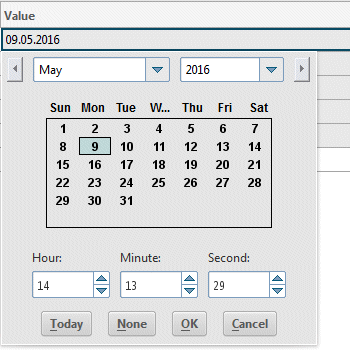
The Date and time element is structured as follows:
List for selecting the month
List for selecting the year
Calendar section for selecting the day
Box for selecting the hour
Box for selecting the minute
Box for selecting the second
Today button for selecting the current date
None button, which enables you to define no date or to discard the selected date
OK button for accepting entries
Cancel button for discarding entries
On the Data tab, you can specify whether the element is a mandatory field, is read-only, or is subject to voting.
Context.setProperty("375ade20-6ea5-11e6-1af0-504e43.value", "2016-10-03");
The Check box element consists of a name and the check box itself. The check box represents a Boolean value. Inline editing is possible.
On the Data tab, you can specify whether the element is a mandatory field, is read-only, or is subject to voting. You can activate report support here, too. Enter the GUID of the relevant report in the Default ID of report field. If you do so, the data will be determined by report right before the dialog is displayed and will then be displayed in the dialog.
Context.setProperty("375ade20-6ea5-11e6-1af0-504e43.value", "true");
The Number field element has a label and is used for entering numbers. It is a spin box with arrows for increasing or reducing the numerical value. Values can also be entered directly. The label can be deleted on the Display tab or by clearing the Has label check box. Inline editing is possible.
You can activate report support on the Data tab. If you do so, the data will be read from ARIS by a report right before the dialog is displayed and will then be displayed in the dialog when the task is opened for editing. You can dynamically change the displayed name (label) of all elements using a report. If the task is displayed read-only, the report is not executed.
The following example shows example code for the report support:
Context.setProperty("375ade20-6ea5-11e6-1af0-504e43.value","1");
The Hyperlink element has a name and represents either a hyperlink (for example, https://www.aris.com), or a shortcut to ARIS Architect models. Inline editing is possible.
On the Data tab, you can specify whether the element is a mandatory field, is read-only, or is subject to voting. You can activate report support here, too. Enter the GUID of the relevant report in the Default ID of report field. If you do so, the data will be determined by report right before the dialog is displayed and will then be displayed in the dialog.
Context.setProperty("375ade20-6ea5-11e6-1af0-504e43.value", "https://www.myServer/myPage.htm");
The Info pane element has a name and several text lines that are displayed when the task is being edited, for example, as an editing note. The executor cannot change the text.
The Label element consists of a single text line. Inline editing is possible.